Using Cursor skills to build custom WordPress sites from Figma

Cursor replaced Visual Studio Code as my main IDE sometime in 2025, and I’ve been a fan ever since. The familiar interface made it an easy transition, and having AI tools alongside my usual development workflow has made a noticeable difference to how efficiently I work.
It’s particularly good at taking care of the grunt work: creating files, refactoring code, and handling repetitive tasks. Crucially, I can still get my hands dirty and fine-tune everything myself, which is exactly how I like to work.
More recently, I’ve been experimenting with how much further I can take it. Could I use AI to improve other parts of my typical bespoke WordPress development workflow, beyond simply helping me write code?
I had an idea: create a series of Cursor skills, each responsible for a specific stage of building a WordPress site from Figma designs. Rather than letting AI loose on an entire project, I’d introduce checkpoints between each stage, giving me the opportunity to review, adjust and approve its work before moving on.
Here’s how I set it up, what worked, and what still needs improving.
The setup: keeping things under control
The starting point is a single project.md file. This holds a few key details, including the Figma URL and local WordPress URL, both of which Cursor can access through MCP (Model Context Protocol).
It also acts as a simple control mechanism for the whole process.
I deliberately chose to use skills rather than autonomous agents. I didn’t want one skill triggering another, or Cursor deciding for itself that it was time to move on to the next stage. Each skill should do its particular job, then stop.
To enforce this, project.md contains three status entries:
- Design system documentation
- Design system code
- Block specification
Each can be assigned a status, which the relevant skills check before carrying out their work. This means I can prevent later stages from running until I’ve reviewed and approved the earlier ones.
It’s a fairly simple arrangement, but it gives me the control I want without introducing a load of unnecessary complexity.
1. Design system: finding consistency in Figma
The first skill reviews the Figma file and identifies the design principles used across the site: typography, colours, buttons, spacing, and other recurring visual elements.
It documents its findings in design-system.md, which I can review and edit before anything gets translated into code. The other skills then use this document as a reference.
The good news is that this worked pretty well.
For example, the skill successfully identified three distinct colour themes used across different content blocks. It documented them in a way that could be understood and reused by the other skills later in the process.

But there were also some interesting limitations.
When you’re developing a website from a design file, you’re not necessarily trying to recreate every pixel exactly as it appears in Figma. You’re trying to interpret those designs and turn them into a coherent, reusable system. Something that’s consistent, maintainable, and flexible enough to work when the client starts adding their own content.
I’d specifically instructed the skill to favour consistency over pixel-perfect accuracy, and it did understand that principle to an extent. But it still struggled with knowing when to consolidate things.
Spacing was a particularly good example. It identified 15 different spacing rules for content blocks, which is far more than I’d want in a typical project.
It also had a tendency to invent rules where they weren’t really needed. If a particular element needs a unique margin, I’m perfectly happy to give that element its own margin. I don’t need to create a reusable spacing variable that’s only ever referenced once.
Similarly, I already have a set of SCSS breakpoint mixins that I use for responsive layouts, and I found myself preferring those over some of the approaches the skill suggested.
These aren’t necessarily failures of the AI. They’re examples of design decisions that require a bit of experience and judgement. And when the source Figma file doesn’t follow a particularly consistent grid or spacing system, there’s only so much the skill can reliably infer.
Turning the design system into code
Once I’m happy with design-system.md, I update the relevant status in project.md to approved and run the skill again.
This time, it uses the approved documentation to generate SCSS in my starter theme, updating files such as variables.scss, typography.scss and buttons.scss.
Once complete, it marks the design system as implemented.
So this skill effectively has two stages: first interpret and document the designs, then translate the approved design system into code.
I like this separation. It means I can resolve design decisions before they become implementation decisions, rather than having to untangle them from the code afterwards.
2. Design architect: working out what to build
Next comes the design architect.
This skill connects to Figma through MCP and scans the designs to identify the content blocks the website will need. If it isn’t clear which pages or frames to analyse, it asks for clarification.

Its output is a document called block-specification.md, which contains the following information for each proposed block:
- A name and slug
- Links to examples of the block in Figma
- A description of its purpose
- The ACF fields it will need
- An overview of its layout and structure
In many ways, this is one of the more important stages. Making sensible decisions about blocks, fields and reusable components at the beginning of a project can save a huge amount of refactoring later on.
And, again, the skill performed pretty well. It was particularly good at identifying the ACF fields required for each block.
But there were two areas where it needed more guidance.
Knowing when to reuse something
The first was identifying what I call partials: smaller, reusable layouts that appear within multiple blocks.
A simple example might be a heading, followed by some body text and a button. That combination could appear in several different blocks, but ideally I’d only want to write the Twig template for it once.
The skill wasn’t particularly good at spotting these opportunities. It tended to treat each block as a standalone component, and I ended up doing a fair amount of refactoring to introduce shared partials afterwards.
Knowing when not to reuse something
Interestingly, it also had the opposite problem.
Sometimes it would identify two visually similar blocks and decide they should be variants of the same block, when I’d much rather they were separate.
From a purely technical perspective, combining similar layouts might seem sensible. But I also have to consider the people who’ll eventually be editing the website.
A single-purpose block with a handful of clearly labelled fields is often much easier to understand than a multi-purpose block with dozens of settings and conditional options.
So there’s a balance to strike: reuse code where it makes sense, but don’t necessarily force that reuse into the WordPress editing experience.
That’s a distinction I don’t think the skill fully grasped.
Getting the data structure right
Another challenge was deciding where content should actually live.
Should a collection of items be stored in an ACF Repeater field? Would it make more sense as a custom post type? Should something be managed globally and referenced from multiple places?
These decisions aren’t always obvious from Figma designs alone, and they can have a big impact on how a website is maintained.
This is another area where I found that the skill could make useful suggestions, but its output needed careful reviewing.
Overall, though, the design architect gave me a very solid starting point. Even when I disagreed with its proposed structure, it had already done a lot of the work of identifying and documenting the various components.
3. Block developer: turning specifications into WordPress blocks
With the design system and block specification approved, it’s time to start building things.
The block developer skill accepts the name of a block and creates the necessary files and code.
It follows the conventions of my starter theme, including using PHP to register the blocks, Twig templates for rendering, SCSS for styling, and JSON files for ACF field groups.
One deliberate restriction is that this skill doesn’t have access to Figma.
Instead, it works entirely from design-system.md and block-specification.md, along with the coding conventions I’ve defined for the project.
This is important to me. By this stage, the architectural decisions should have been made and approved. I don’t want the block developer interpreting the designs independently and potentially making decisions that contradict the earlier stages.
I also chose to build blocks individually rather than asking Cursor to generate the whole lot in one go.
It’s easier to review the code, check the output, and make adjustments to the conventions before those same issues get repeated across another 20 blocks.
The ACF headache
One area I haven’t completely ironed out is ACF field management.
The skill generates field group definitions in JSON files, with one file per group. In principle, this is exactly what I want, but I’ve encountered some confusion around field syncing between the JSON files and WordPress.
It generally understands the structure of the fields, but keeping everything properly synchronised has been less reliable than I’d hoped.
I’m considering investigating ACF’s MCP integration more thoroughly to see whether there’s a better way of handling this.
Despite that, the block developer has been genuinely useful, particularly when it comes to the repetitive parts of setting up new blocks.
4. Code reviewer: a second pair of eyes
The code reviewer skill does pretty much what you’d expect.
I can pass it the name of a block, and it’ll review the implementation against design-system.md, block-specification.md and the project’s coding conventions.
It looks for inconsistencies, opportunities to use shared partials, and places where the code might be unnecessarily complicated.
It also reinforces one of the main principles of the whole setup: favouring a coherent, maintainable design system over blindly recreating every detail in Figma.
Of all the skills, this is probably the one I’ve used the least.
Because I’m building blocks individually, I’m generally reviewing the code as I go anyway. After many years of WordPress development, I’m fairly comfortable spotting things that could be tidier or more efficient.
That said, I did make one useful change to the skill.
If I don’t specify a particular block, it instead reviews all uncommitted changes in the repository.
This makes it a handy final check before committing and pushing code, and probably a more useful role for it in my day-to-day workflow.
5. Page builder: putting everything together
The final skill takes things a step further.
I give it the name of a page in Figma, and it uses the WordPress MCP connection to create that page in my local WordPress installation, assembling it from the custom blocks I’ve already developed.
Where possible, it populates those blocks with the content from Figma. Where content isn’t available, it uses placeholders.
This was probably the most satisfying part of the whole experiment.
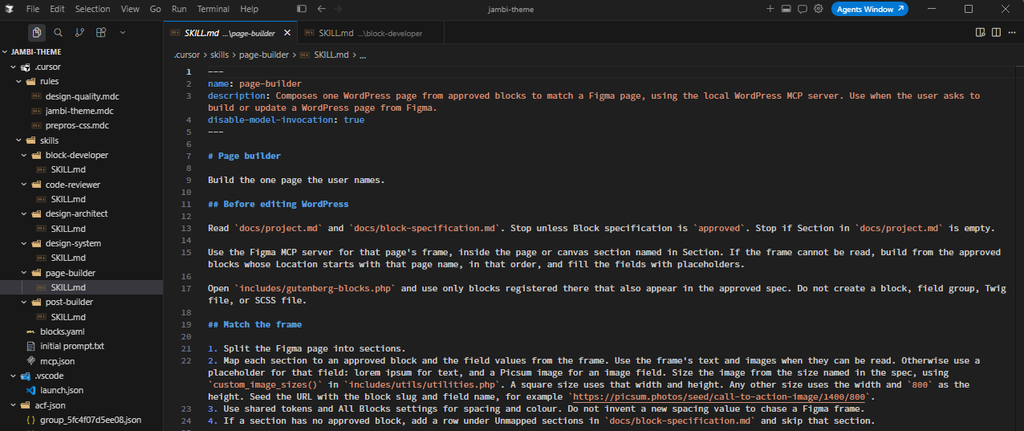
Although this skill took noticeably longer to run than some of the others, it saved me a considerable amount of time.
Manually building pages in WordPress isn’t especially difficult, but it can be tedious. Adding blocks, selecting the right variations, copying content and arranging everything in the correct order is precisely the kind of repetitive work I’d rather automate.
It was also a useful way to test multiple blocks together and identify inconsistencies that weren’t obvious when reviewing them individually.
In fact, it made me rethink part of the earlier workflow.
Rather than waiting until the page-building stage to see everything in WordPress, perhaps the block developer should automatically add each completed block to a dedicated block library page.
That would give me a single place to review all the components as they’re built, and make it easier to spot issues with consistency, spacing and styling before starting on actual pages.
That’s something I’ll probably introduce in the next iteration.
What’s next?
There are still some gaps in this setup.
The most obvious is custom post types. At the moment, the design architect can suggest when content would benefit from a custom post type, but there’s no dedicated skill responsible for creating it and generating the associated files.
That’s probably the next addition.
I’d also like to improve how the design architect identifies partials, tighten up its decisions around block variants, and find a more reliable way of managing ACF field groups.
And I think the block library idea could be a particularly useful improvement.
So, was it worth it?
Definitely, although perhaps not in quite the way I’d originally imagined.
The biggest benefit hasn’t been getting AI to build entire websites for me. It’s been finding specific, repetitive parts of my workflow that can be handled more efficiently without sacrificing control over the finished product.
Some stages worked better than others. The page builder was a real time-saver, while the design system and architectural stages required significantly more human judgement.
What became apparent is that AI is generally better at implementing a clearly defined system than deciding what that system should be.
That’s why the checkpoints are so important. I want the AI to do the heavy lifting, but I still want to make the decisions about how a website should be structured, how its components should be reused, and what the editing experience should look like.
I’m also conscious that a good WordPress site is much more than a faithful recreation of a Figma file. It needs to be robust, maintainable, and pleasant for the people who’ll actually be using it.
For now, treating AI as a collection of specialised tools rather than an autonomous developer feels like the right balance.
And if it means spending less time creating field groups and copying content into WordPress, I’m all for it.